


|

How to convert MPC to M4A online with MPC to M4A Converter? Free download MPC to M4A Converter and convert .MPC to .M4A with the best MPC to M4A Convertor, MPC2M4A Converter for Windows.
Steps on how to convert MPC to M4A:
Free download MPC to M4A Converter, install it and launch it. Then follow the three steps to convert MPC to M4A.
1. Select the MPC files to convert to M4A format.
The first step is to select the files to convert mpc to m4a. Run MPC to M4A Convertor and use the Folder Explorer to browse to the files you want to convert. Then select the file in the File List, drag it to the Drop Zone and drop it there. Optionally, the MPC to M4A Converter allows you to edit the audio tags of any selected file in the Drop Zone.
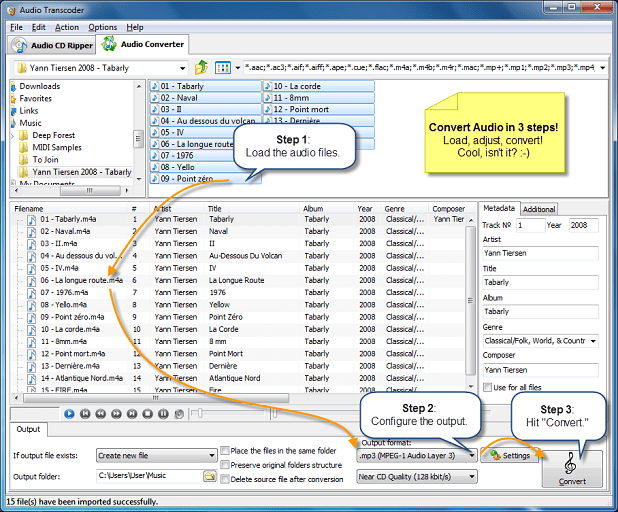
Once the files are selected, the next step is to select the output settings in MPC2M4A Converter.
2. Select the output settings.
The second step is to select the output settings. To begin, select the folder to save the output file to and choose the action to be executed if the output file already exists - create a new file, overwrite or skip the existing file.

You can also set the MPC to M4A Converter to delete a source file after conversion and preserve the the original folder structure, when doing batch conversion.
Finally, you should select the output format and audio quality.
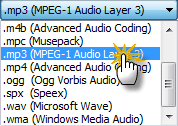
Once the output settings are customized, you go to the final step - mpc to m4a conversion.
3. Convert the .mpc files to m4a.
To start the mpc to m4a conversion, click Convert. A conversion dialog will appear to show the progress of mpc to m4a conversion.
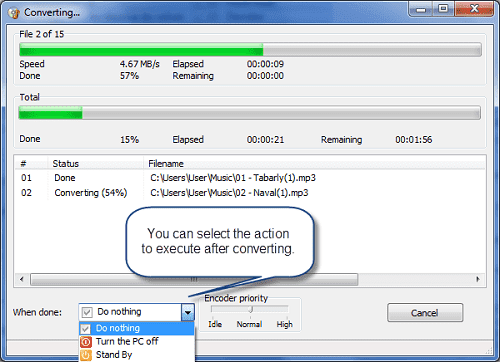
During the turning mpc into m4a, you can change the priority of the process or set an automatic event to be executed when the conversion is over. After the conversion of mpc to m4a has finished, you can find the m4a files in the output folder you specified.
With Audio Transcoder you can convert 5x137p96 files to all iOS devices like iPod, iPhone and iPad.
Also you can use MPC to M4A Converter as:
- MPC to AIFF Converter
- MPC to ALAC Converter
- MPC to M4R Converter
- MPC to MP3 Converter
- MPC to APE Converter
- MPC to FLAC Converter
- MPC to MP4 Converter
- MPC to AC3 Converter
- MPC to WMA Converter
- MPC to M4B Converter
- MPC to SPX Converter
- MPC to WAV Converter
- MPC to MP2 Converter
- MPC to AAC Converter
- MPC to OGG Converter
- AAC to MP3 Converter
- AC3 to MP3 Converter
- AIFF to MP3 Converter
- APE to MP3 Converter
- FLAC to MP3 Converter
- M4A to MP3 Converter
- M4B to MP3 Converter
- M4R to MP3 Converter
- MP2 to MP3 Converter
- MP4 to MP3 Converter
- WAV to MP3 Converter
- WMA to MP3 Converter
- WV to MP3 Converter
- OGG to MP3 Converter
- SPX to MP3 Converter
- TTA to MP3 Converter
- CDA to MP3 Converter
- OFR to MP3 Converter
- ALAC to MP3 Converter
MPC to M4A Converter System Requirements:
-
Minimum System Requirements
- Microsoft Windows XP/Windows Vista/Windows 7/Windows 8/8.1(32-bit and 64-bit)
- 1.0 GHz or faster processor
- 512 MB RAM
- 10 MB free hard drive space
-
Recommended System Requirements
- Microsoft Windows XP/Windows Vista/Windows 7/Windows 8/8.1 (32-bit and 64-bit)
- Pentium 4 or faster multi-core processor
- 1 GB RAM
- 10 MB free hard drive space
Frequently Asked Questions:
How to uninstall MPC to M4A Converter?
How do I uninstall MPC to M4A Converter in Windows Vista / Windows 7 / Windows 8 / Windows 8.1 / Windows 10?
Click “Start”
Click on “Control Panel”
Under Programs click the Uninstall a Program link.
Select “MPC to M4A Converter” and right click, then select Uninstall/Change.
Click “Yes” to confirm the uninstallation.
How do I uninstall MPC to M4A Converter in Windows XP?
Click “Start”
Click on “Control Panel”
Click the Add or Remove Programs icon.
Click on “MPC to M4A Converter”, then click “Remove/Uninstall.”
Click “Yes” to confirm the uninstallation.
How do I uninstall MPC to M4A Converter in Windows 2000?
Click “Start”
Click on “Control Panel”
Double-click the “Add/Remove Programs” icon.
Select “MPC to M4A Converter” and right click, then select Uninstall/Change.
Click “Yes” to confirm the uninstallation.
How do I access the MPC to M4A Converter download for PC?
It’s easy! Just click the MPC to M4A Converter download button at the page. Clicking this link will start the installer to download MPC to M4A Converter free for Windows.
Will this MPC to M4A Converter download work on Windows?
Yes! The MPC to M4A Converter download for PC works on most current Windows operating systems.
What are MPC and M4A?
MPC format: Musepack is an audio compression format with a strong emphasis on high quality.
M4A format: M4A is a file extension for an audio file encoded with advanced audio coding (AAC) which is a lossy compression.