


|

How to convert FLAC to MPC? Try the Audio Transcoder!
Key features of the best FLAC-to-MPC Converter:
- Lightning-fast conversion (multi-core optimized encoders to speed up conversions on modern PCs.)
- Batch mode for multiple files conversion task, Audio Transcoder can convert thousands of FLAC files at once.
- Supports most widely used popular input and output formats.
- Supports drag & drop.
- Full Unicode support for tags and file names.
- Integrated CD ripper with CDDB/freedb title database support.
- Supports conversion without any temporary files it brings you high converting speed and saves hard disk resource.
- Easy to learn and use, still offers expert options when you need them.
- Creates output folders according to source files directory tree automatically.
- It can add ID3 tag such as title, artist, album, year, genre, and comment to target file when converting files to MP3/WMA/OGG/WAV/APE/MP4/M4A/M4B.
- Fairly intuitive to use with its Windows Explorer-Style user interface.
Do you have some .flac files that you want to convert to MPC so you can listen to them on your phone? Fortunately for you, we’ve put together a simple guide for converting FLAC into MPC. Audio Transcoder offers you an easy and fast way to convert any audio files to MPC with high quality. It is an advanced Music Converter and CD Ripper with support of various popular media formats and encoders.
Free download and follow the instructions below
Steps on how to convert FLAC to MPC:
1. Add the media files to convert.
The first step is to select media files to convert. Run Audio Transcoder and use Folder Explorer to browse files you want to convert. Then select a file in the File List, drag it to the Drop Zone and drop it there. Optionally, Audio Converter allows you to edit tags of any selected file in Drop Zone.
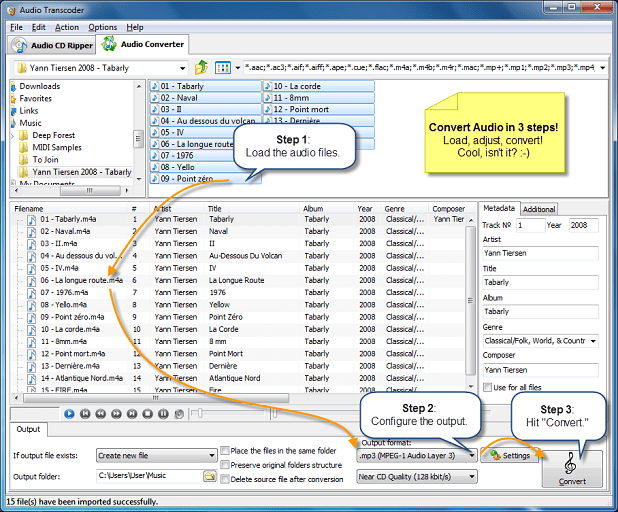
Once files are selected, the next step is to select the output settings in Converter.
2. Select the output settings.
The second step is to select an output settings. To begin, select a folder for output and choose an action to be executed if an output file already exists (create a new file, overwrite or skip existing file).

Also you can set Media Converter to delete source file after conversion and preserve original folder structure, when doing batch conversion. Finally, you should select the output format and sound quality. In MPC dialog box, choose format settings for the final tracks. Depending on quality you need, select bitrate, sample rate and the number of channels. You will probably lose some audio content if you choose mono option. You can choose what sample rate you want to use. 44.1 kHz (or 44100 Hz) is a sample rate used by music CDs. Less than that and you'll start to hear the loss in quality. You can choose a bit rate you want to use (128kbps is often used for MPCs on the internet).
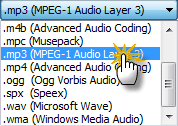
Once output settings are customized, you can go to the final step - transcoding.
3. Start to convert any audio files to .mpc
Click Convert button to start to transcode music into any audio format you desired. A conversion dialog will appear to show the progress of data conversion. If you want to stop process, please click Stop button. After conversion, you can click an Output Folder button to get transcoded files and transfer to your iPod, iPad, iPhone, media player or hard driver.
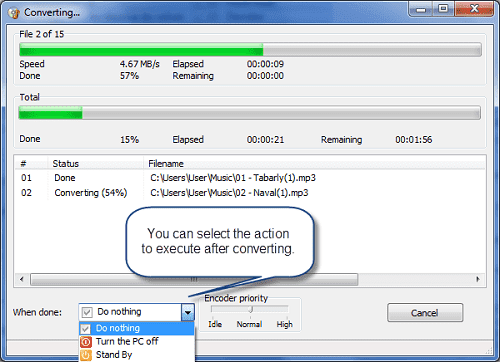
During the turning music into mpc, you can change priority of the process or set an automatic event to be executed when the conversion is over. After the conversion has finished, you can find your converted files in the output folder you specified.
People often search for "flac mpc converter online" or "how to convert flac to mpc online" without realizing that uncompressed audio files are large in size and by the time you upload, convert and download files you are better off downloading Audio Transcoder on your PC and perform convention locally = 0 second waiting for uploading and downloading. With our Audio Converter you can easily rip your CDs to MPC, FLAC or WMA files for use with your hardware player or transcode files that do not play with other software. You can even transcode whole music libraries retaining the folder and the filename structure. The integrated CD ripper supports CDDB/freedb online CD database. It will automatically query song information and write it to ID3v2 or other title information tags. Have any questions regarding Audio Converter? See below Frequently Asked Questions.
With FLAC MPC Converter you can convert any media tracks for all iOS devices and play audio on your iPod, iPhone or iPad.
Useful How-to Guides:
- Convert FLAC > ALAC
- Convert FLAC > M4R
- Convert FLAC > AIFF
- Convert FLAC > WAV
- Convert FLAC > AAC
- Convert FLAC > MP3
- Convert FLAC > M4A
- Convert FLAC > M4B
- Convert FLAC > MP4
- Convert FLAC > APE
- Convert FLAC > MP2
- Convert FLAC > MPC
- Convert FLAC > OGG
- Convert FLAC > SPX
- Convert FLAC > WMA
- Convert FLAC > AC3
- Convert AAC > MP3
- Convert AC3 > MP3
- Convert AIFF > MP3
- Convert APE > MP3
- Convert M4A > MP3
- Convert M4B > MP3
- Convert M4R > MP3
- Convert MP2 > MP3
- Convert MP4 > MP3
- Convert MPC > MP3
- Convert WAV > MP3
- Convert WMA > MP3
- Convert WV > MP3
- Convert OGG > MP3
- Convert SPX > MP3
- Convert TTA > MP3
- Convert CDA > MP3
- Convert OFR > MP3
- Convert ALAC > MP3
Software System Requirements:
-
Minimum System Requirements
- Microsoft Windows XP (32-bit and 64-bit)
- 1.0 GHz or faster processor
- 512 MB RAM
- 10 MB free hard drive space
-
Recommended System Requirements
- Microsoft Windows 7/8/8.1/10 (32-bit and 64-bit)
- Pentium 4 or faster multi-core processor
- 1 GB RAM
- 10 MB free hard drive space
Frequently Asked Questions
We strongly recommend that you first find answers to your questions here before try to contact us.
Q: What is FLAC ?
A: FLAC stands for Free Lossless Audio Codec, an audio format similar in MP3, but lossless, meaning that audio is compressed in FLAC without any loss in quality. This is similar in how Zip works, except with FLAC you will get much better compression because it is designed specifically for audio, and you can play back compressed FLAC files in your favorite player (or your car or home stereo, see supported devices) just like you would an MP3 file. Notable features of FLAC: Lossless: The encoding of audio (PCM) data incurs no loss of information, and the decoded audio is bit-for-bit identical in what went into the encoder. Each frame contains a 16-bit CRC of the frame data for detecting transmission errors. The integrity of the audio data is further insured by storing an MD5 signature of the original unencoded audio data in the file header, which can be compared against later during decoding or testing. Fast: FLAC is asymmetric in favor of decode speed. Decoding requires only integer arithmetic, and is much less compute-intensive than for most perceptual codecs. Real-time decode performance is easily achievable on even modest hardware. Hardware support: FLAC is supported by dozens of consumer electronic devices, from portable players, in home stereo equipment, in car stereo. Flexible metadata: FLAC's metadata system supports tags, cover art, seek tables, and cue sheets.
Back in top
Q: What is MPC ?
A: MPC is an audio file format used by Musepack. Musepack or MPC is an open source lossy audio codec, specifically optimized for transparent compression of stereo audio at bitrates of 160–180 (manual set allows bitrates up to 320) kbit/s. It was formerly known as MPEGplus, MPEG+ or MP+. MPC files are compressed audio files based on MPEG-2 algorithms. MPC files do not use a constant bitrate, but have a changing bitrate that adapts to the need of a specific portion of the audio data. This allows for higher-quality audio. The psychoacoustic model of MPC is based on MPEG ISO model 2, but is extended by CVD (clear voice detection). The quantization algorithm of the MPC encoder performs spectral shaping of the noise, called adaptive noise shaping (ANS), in order to overcome the low frequency resolution of the polyphase quadrature filter bands. Musepack is mainly optimized for transparent encoding at the "--standard" preset (175-185 kbit/s).
Back to top
Q: How to ask questions, give comments & advises and report bugs?
A: Please contact us.
Back to top